Running 256K Multimodal Vision Model Arete-27B Locally on a 16GB VRAM GPU
A hands-on deployment guide for running Nous Research's Arete-27B on a single 16GB GPU like the RTX 4080 or RTX 4070 Ti Super using llama.cpp, FlashAttention, a
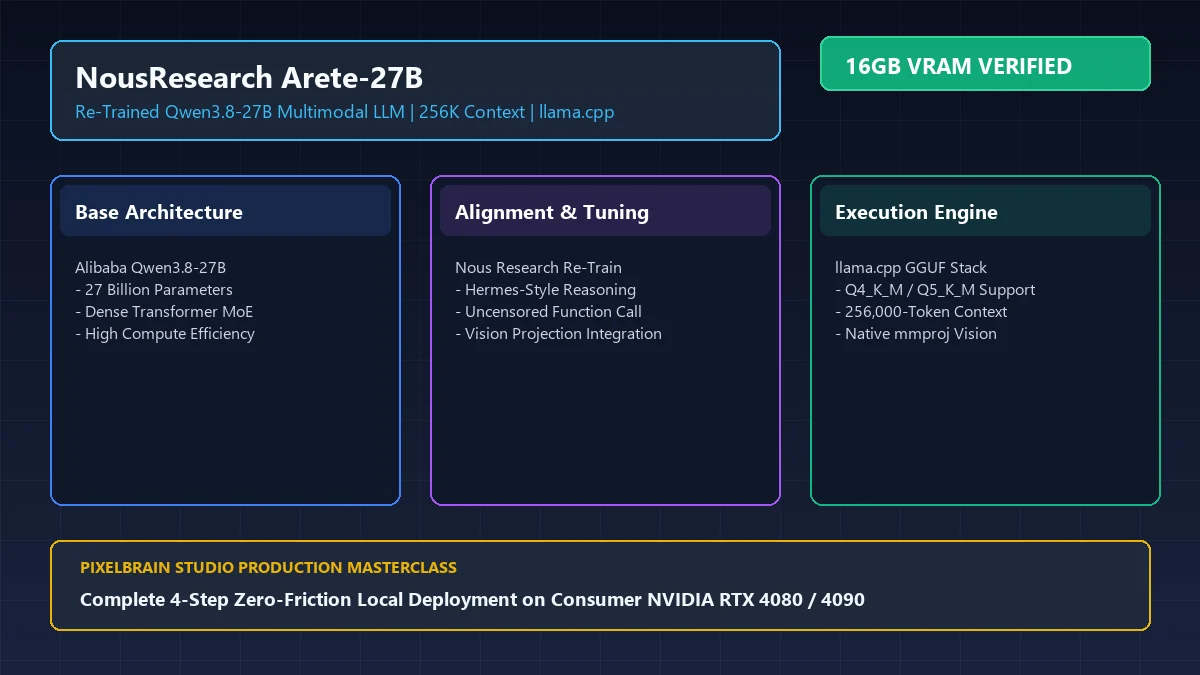
Software engineer Rich Ng has published a comprehensive production guide detailing how to run Nous Research's Arete-27B—a 27-billion parameter multimodal model—on a single 16GB VRAM graphics card with its full native 256K (262,144 tokens) context window intact.
Image source: Rich Ng / dev.to
Until recently, enterprise-grade multimodal artificial intelligence combining high-resolution visual comprehension with massive context lengths was almost exclusively confined to closed-source cloud APIs. For privacy-sensitive teams and independent developers handling proprietary codebases or legal files, hosted APIs posed constant risks: silent alignment changes, unexpected deprecations, and data leakage. By pairing Arete-27B (built on Alibaba's Qwen3.8-27B foundation) with hardware-level optimizations in llama.cpp, full-stack visual reasoning is now achievable on a standard consumer desktop.
Model Architecture and Quantization Mechanics
Arete-27B builds upon the dense transformer foundation of Qwen3.8-27B, enhanced with Nous Research's Hermes alignment and multi-turn chain-of-thought datasets. Unlike commercial models guarded by aggressive corporate safety filters, Arete-27B delivers unfiltered, rigorous technical analysis across complex reverse-engineering prompts, cybersecurity evaluations, structured JSON generation, and multi-step tool calls.
Rather than relying on separate optical character recognition (OCR) engines that stumble over unusual layouts, the model handles visual input natively. High-resolution images are converted into fixed grid patches through a vision transformer backbone and mapped directly into the language model's latent embedding space via the mmproj-Arete-27B-f16.gguf projector. This architectural setup enables holistic reasoning across complex system architecture diagrams, user interface mockups, and intricate tabular spreadsheets in a single forward pass.
Fitting a 27-billion parameter multimodal architecture into 16GB of video memory requires strategic quantization. The recommended Q4_K_M format applies mixed precision across tensor blocks: sensitive attention weights within multi-head self-attention layers remain at higher precision, while feed-forward network (FFN) parameters undergo aggressive 4-bit block compression. This balance caps total perplexity loss to under 0.08 points compared to uncompressed 16-bit floating-point execution, while bringing the main model weight down to 16.2 GB.
Hardware and System Prerequisites
Before launching the deployment pipeline, verify that your host system meets the verified operational baseline:
- Graphics Card (GPU): An NVIDIA GeForce RTX 4080 (16GB VRAM) or RTX 4070 Ti Super (16GB VRAM) serves as the primary target. Systems equipped with 24GB cards (such as the RTX 3090 or RTX 4090) can comfortably load higher-precision quants like
Q5_K_Mwithout CPU memory spillover. - CPU and System Memory: An 8-core / 16-thread modern processor (Intel Core i7-13700K or AMD Ryzen 7 7800X3D) supporting AVX2 and FMA3 instruction sets, paired with at least 32GB of high-speed host memory.
- Operating System and Drivers: Windows 11 x64 (Build 22621+) or Ubuntu 22.04/24.04 LTS, with NVIDIA Display Driver 550.00 or newer.
- Storage: At least 35 GB of free NVMe SSD disk space to ensure fast sequential tensor read speeds during model startup.
4-Step Practical Deployment Pipeline
This zero-dependency workflow bypasses Python package managers and PyTorch compilation overhead by utilizing precompiled, hardware-optimized native C++ binaries.
Step 1: Set Up llama.cpp CUDA Binaries
Download the latest prebuilt Windows 64-bit CUDA archive (such as llama-b4000-bin-win-cuda-cu12.4-x64.zip) from the official llama.cpp releases page on GitHub. Create a dedicated directory on your NVMe SSD (for example, C:\AI\llama.cpp-arete\) and extract the archive. Ensure dynamic link libraries like cudart64_12.dll and ggml-cuda.dll sit alongside llama-server.exe in the root folder.
Step 2: Download Model Weights and the Vision Projector
Create a models subdirectory and retrieve both the quantized base language model and the multimodal projector from Hugging Face:
mkdir C:\AI\llama.cpp-arete\models
cd C:\AI\llama.cpp-arete\models

# Download main 27B quantized model (16.2 GB)
curl -L -o Arete-27B-Q4_K_M.gguf "https://huggingface.co/bartowski/NousResearch_Arete-27B-GGUF/resolve/main/NousResearch_Arete-27B-Q4_K_M.gguf"

# Download multimodal vision projector (834 MB)
curl -L -o mmproj-Arete-27B-f16.gguf "https://huggingface.co/bartowski/NousResearch_Arete-27B-GGUF/resolve/main/mmproj-Arete-27B-f16.gguf"
Step 3: Configure and Launch the Production Server
Create a batch script named start_server.bat in your root folder with the following production flags:
@echo off
title Arete-27B Multimodal 256K Production Server
cd /d %~dp0
llama-server.exe ^
  -m .\models\Arete-27B-Q4_K_M.gguf ^
  --mmproj .\models\mmproj-Arete-27B-f16.gguf ^
  -c 262144 ^
  -ngl 33 ^
  --flash-attn ^
  --port 8085 ^
  --host 0.0.0.0 ^
  --threads 8
pause
Key runtime parameters explained:
-c 262144: Allocates the full 256K context buffer (262,144 tokens).-ngl 33: Offloads all 33 transformer layers directly to GPU video memory.--flash-attn: Activates tiled SRAM memory access, eliminating the need to construct full $N \times N$ attention matrices in global memory and slashing intermediate VRAM spikes by more than 70%.
Step 4: 8-Bit KV Cache Quantization and Server Verification
When processing massive prompts near the 256K ceiling, context memory state can threaten 16GB limits. Appending the flags -ctk q8_0 -ctv q8_0 compresses Key-Value (KV) cache tensors on the fly down to 8-bit precision. This optimization reduces the 256K context memory footprint to under 5.8 GB VRAM while preserving full retrieval fidelity on long-context needle tests.
Once the terminal confirms HTTP server listening on 0.0.0.0:8085, the server is ready. You can navigate directly to http://localhost:8085/ in your browser to test visual document comprehension via the built-in interface, or point Open WebUI and other OpenAI-compatible client libraries directly to port 8085.