How to Register for Meta Muse AI via Mobile Cloud Phone (Airtap) in 3 Steps
A practical guide to bypassing North American region locks for Meta's personal AI agent Muse using an Airtap mobile cloud phone in three quick steps to secure t
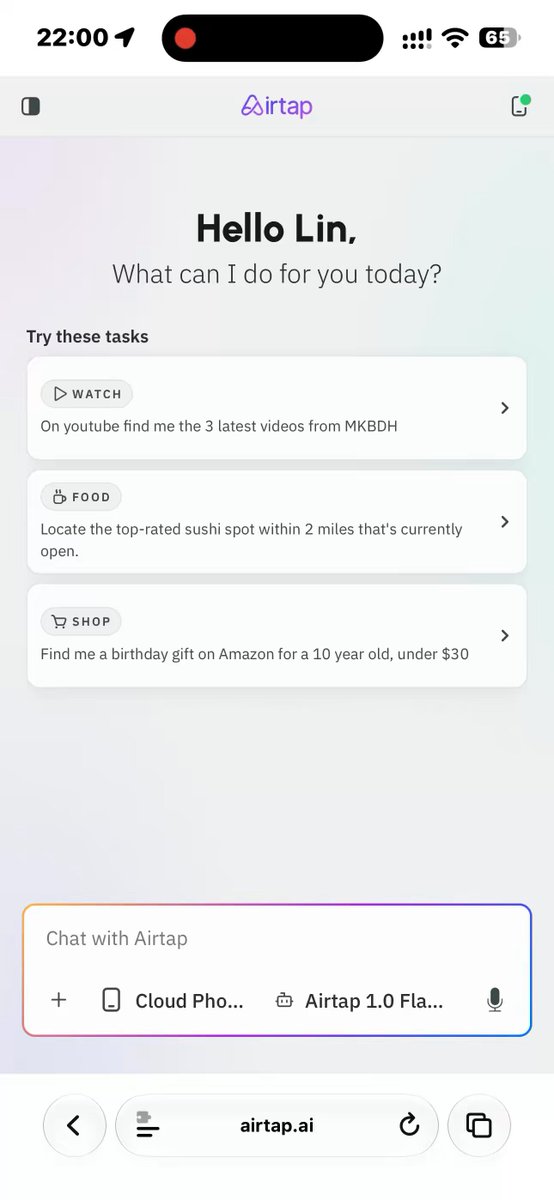
AI creator @alin_zone on X (formerly Twitter) has shared an accessible three-step workflow for signing up for Meta's personal web AI agent, Muse (muse.ai), directly from a smartphone browser. By launching a lightweight virtual cloud phone instance through Airtap rather than configuring complex residential proxies or device-wide VPN tunnels, users outside supported rollout zones can establish a clean North American session and complete their registration in minutes.
Image source: @alin_zone / X
1. Why Mobile Cloud Phones Provide a Cleaner Access Path
Meta's next-generation personal web AI agent, Muse (accessible at muse.ai), is currently undergoing prioritized early-access rollouts focused primarily on North American users. When accessed from international IP ranges or flagged network environments, visitors are routinely routed to waitlist notices or blocked at the account creation gateway.
Historically, navigating these early geographic constraints required configuring desktop-based residential proxy connections or system-level VPN clients. On mobile devices, however, setting up network certificates, third-party VPN profiles, or routing tunnels often proves cumbersome, and datacenter IP blocks are frequently detected and restricted during the registration handshake.
The technique demonstrated by @alin_zone bypasses these local configuration barriers by leveraging Airtap (airtap.ai), a mobile-accessible cloud phone service that provisions remote virtual Android environments. Because the virtual device operates entirely within clean remote infrastructure, users can launch an isolated North American browsing instance straight from their native mobile browser, reducing the technical setup required to access the agent.
2. Step-by-Step 3-Stage Registration via Airtap
The entire registration procedure is carried out inside the mobile browser through three straightforward operational steps:
- Create an account on the cloud phone platform: Open any mobile or desktop web browser, visit the Airtap login and sign-up portal (https://airtap.ai/app/login), and register a basic service account.
- Launch the virtual mobile device instance: Once logged into the Airtap dashboard, tap the 'Cloud Phone' icon situated in the upper right corner to initiate a fresh, interactive virtual smartphone session directly within the browser window.
- Navigate to Muse and complete sign-up: Inside the virtual smartphone's interface, open the pre-installed Google Chrome application, enter the official Muse web address (https://muse.ai), and proceed through the on-screen email registration and account creation prompts.
3. Essential Caveats: Referral Code Entry and Session Management
When going through the sign-up flow, several practical execution details and community observations shared in the discussion thread should be kept in mind:
- Do not exit before entering the referral code: A critical practical nuance noted by thread contributors (such as @yinchuanhui) is to avoid closing the browser tab immediately upon initial account submission. The onboarding sequence presents an invitation code field that unlocks introductory bonus tokens. Because many users unintentionally swipe past or dismiss this screen, claiming the token grant requires entering an active invitation code—such as the one provided by the author (
2LFE3H) or an alternative teammate code—before exiting the session. - Environment isolation against IP leakage: Because the Google Chrome instance executes completely inside Airtap's virtualized Android runtime, local device geolocation data, saved cookies, and domestic network routes do not bleed into the verification flow, significantly lowering the risk of sudden fraud flags.
- Cross-device usage following activation: After successfully finishing email verification and establishing the account within the cloud phone session, the newly minted credentials can subsequently be logged into from standard desktop browsers without needing to keep the cloud phone active for routine day-to-day interactions.