How to Check RAM Speed in Windows Task Manager and Verify XMP or EXPO
A practical guide to checking whether your RAM is stuck at default speeds in Windows Task Manager, understanding MT/s readings, and verifying XMP or EXPO profil
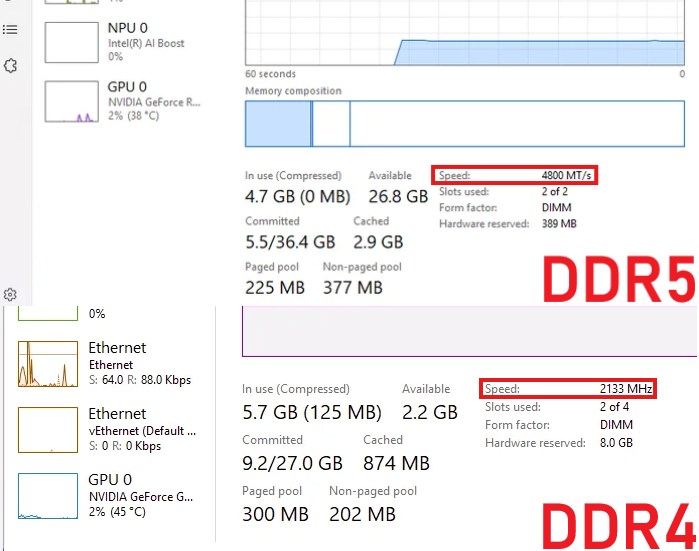
Hardware enthusiast and performance optimizer Saiyan (@SAIYANFPS) recently shared a straightforward diagnostic check for Windows PC users whose memory may be running far below its advertised frequency. Even after purchasing high-performance RAM kits, many users unknowingly leave their systems running at baseline JEDEC speeds, either because overclocking profiles were never turned on in firmware or because a recent update silently restored factory defaults.
Image source: X / @SAIYANFPS
How to Check Your Memory Speed in Windows Task Manager in 10 Seconds
Checking your actual memory operating speed in Windows Task Manager takes only a few clicks and requires no third-party benchmarking utilities.
- Open Task Manager: Press
Ctrl + Shift + Escon your keyboard, or right-click the Windows Start button on the taskbar and select 'Task Manager' from the context menu. - Navigate to Performance: In the left navigation rail (or top tab strip), select the 'Performance' icon and click the 'Memory' subcategory.
- Inspect the Speed Field: Locate the 'Speed' metric displayed near the bottom-right corner of the memory metrics panel.
- Identify JEDEC Default Clocks: Verify whether the reported speed is pinned near default JEDEC baselines, specifically 2133 MT/s for DDR4 memory or 4800 MT/s for DDR5 memory.
If you purchased a high-performance kit rated for DDR4-3200, DDR4-3600, or DDR5-6000 and the speed column displays 2133 MT/s or 4800 MT/s, your system is running at the standard fail-safe baseline rather than the rated memory profile you paid for.
Understanding MT/s vs MHz and the Impact of Default JEDEC Speeds
In modern Windows 11 releases, Task Manager displays memory speed in MT/s (MegaTransfers per second) rather than MHz.
Because Double Data Rate (DDR) memory transmits data on both the rising and falling edges of the clock signal, its effective transfer rate is twice the underlying bus clock frequency. Microsoft updated the Task Manager interface to use MT/s because it represents a technically accurate measurement of double-rate throughput. Seeing MT/s in Task Manager does not indicate that your system uses DDR5; updated Windows installations display DDR4 memory in MT/s as well.
Running memory at default JEDEC speeds leaves significant performance untapped, particularly in CPU-limited gaming scenarios and framerate stability. Memory bandwidth and sub-timings heavily influence frame pacing and 1% low framerate consistency. When modern graphics cards are paired with memory stuck at baseline transfer rates, micro-stutters and uneven frame delivery often appear in titles where the CPU must rapidly fetch draw calls from system RAM.
Common Triggers That Silently Reset XMP and EXPO Profiles
Even if you previously configured an overclocking profile in BIOS or UEFI, motherboard firmware can revert settings back to default without explicit notifications. Saiyan highlights several routine events that can wipe custom profile settings:
- Failed Memory Training and Bad Boots: If system power fluctuates or a transient timing error occurs during startup, motherboard firmware often falls back to safe JEDEC defaults to ensure a successful boot.
- Motherboard BIOS and Firmware Updates: Flashing a new motherboard BIOS release completely resets non-volatile CMOS registers, clearing all saved memory profiles and manual voltage configurations.
- CMOS Battery Depletion or Power Cuts: Disconnecting the system from wall power while a CMOS coin-cell battery is degraded clears volatile configuration memory.
- Loading Optimized Defaults: Resolving an operating system crash or adjusting storage settings by selecting 'Load Optimized Defaults' in firmware automatically disables memory overclocking profiles.
Because these resets rarely trigger desktop warnings, systems often run sub-optimally for months undetected. Users on Intel platforms should periodically enter BIOS/UEFI to verify that Intel XMP (Extreme Memory Profile) Profile 1 is active, while AMD users should confirm that AMD EXPO (Extended Profiles for Overclocking) or ASUS DOCP is engaged, followed by a quick verification in Windows Task Manager.