Isolating Specific Video Sounds: Meta SAM Audio Browser Separation Tips
Remove unwanted background music and noise from AI videos in your browser using Meta SAM Audio web demo via visual clicks, text prompts, and timeline segments.
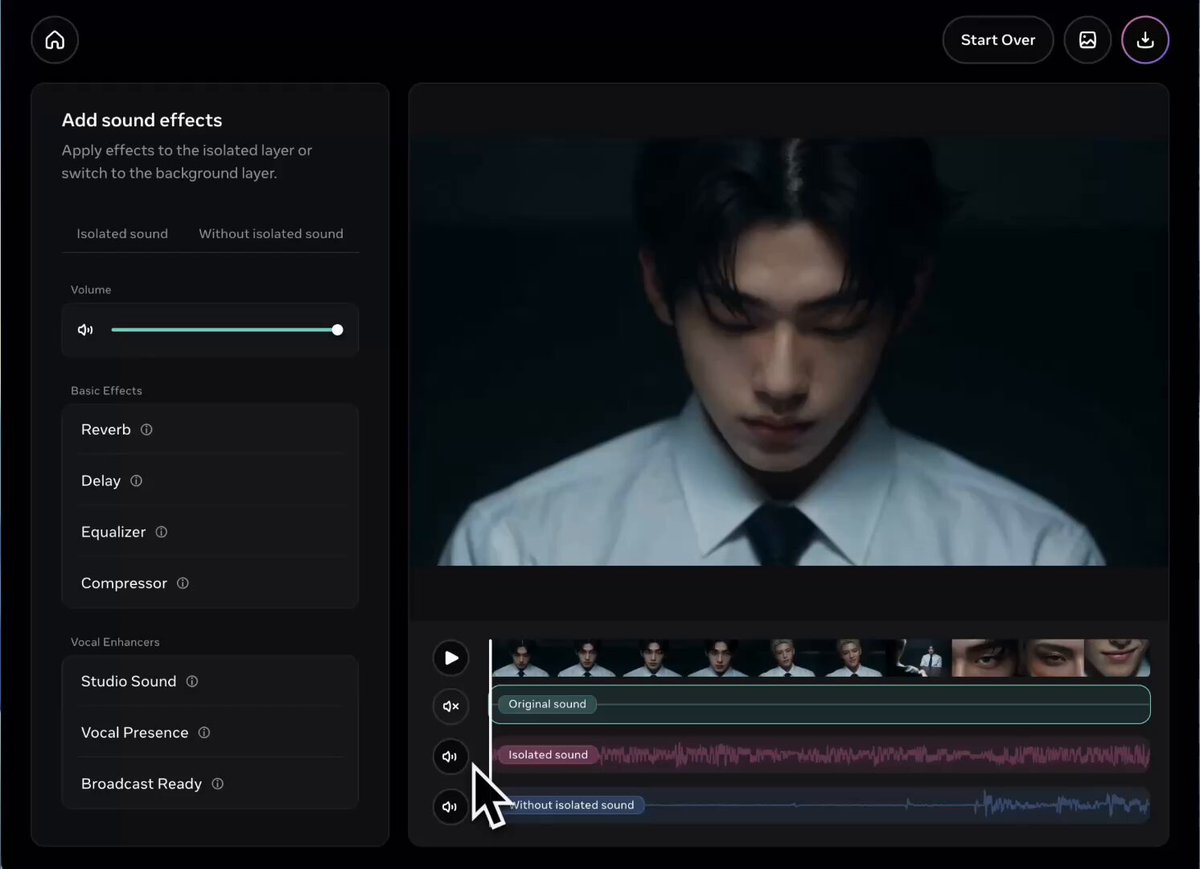
When generating AI video clips, creators often face frustrating issues with mismatched background music or unwanted synthetic sound effects forcefully baked into the footage. On October 14, 2026, creator LOOPY (@VibeEverything) on X shared a practical workflow for isolating and eliminating unwanted audio tracks directly in the web browser using Meta's SAM Audio, without requiring complex digital audio workstations (DAWs) or third-party audio plugins.
Image source: LOOPY (@VibeEverything) via X
When creating AI videos, creators frequently encounter scenarios where the visual motion and character performance look great, but unexpected background score or unnecessary sound effects are forcefully mixed into the output, making the clip difficult to use directly.
Muting the entire clip discards essential atmospheric sound design or natural ambience. Meanwhile, setting up dedicated audio engineering suites, vocal isolators, or specialized stem-separation plugins introduces steep learning curves and heavy local installation overhead. Meta's publicly accessible SAM Audio web demo resolves this bottleneck by bringing sound separation directly into a browser tab without requiring separate software installation.
Three Step-by-Step Separation Methods in Meta SAM Audio
According to the workflow shared by the original author, separating audio in SAM Audio is straightforward and offers three control modalities:
- Visual Click: Click directly on a person or an object within the video player. The model tracks the target subject and extracts only the sounds produced by that entity.
- Text Input:
Type descriptive natural language text targeting the sound you wish to separate. For instance, entering keywords such as
piano playingorvocalsisolates matching sounds. - Timeline Segment: Specify the exact time span on the audio timeline where the target sound occurs, confining separation strictly to that segment.
By combining visual targeting, text descriptors, and precise timeline boundaries, creators can isolate and extract specific audio layers even within mixed audio recordings.
Dual-Track Extraction and Post-Production Practical Tips
A standout capability of Meta SAM Audio for video creators is its native support for complementary two-way stem extraction:
- Isolated Target Extraction: The tool extracts and outputs only the desired target sound as a separate audio track.
- Residual Audio Output: In addition, the tool outputs the remaining audio file with that specific sound removed, leaving surrounding background sounds and intact audio elements ready for download.
The original author noted that among various audio removal methods, SAM Audio's web demo provides one of the easiest and cleanest workflows, enabling cleanup in just a few clicks directly in the browser. This makes it an ideal post-processing tip for AI filmmakers who need to strip out unwanted AI-generated background audio and replace it with custom soundtracks.
Original source
- LOOPY (@VibeEverything) Official Post on X: 2026-10-14 Original Tip Thread
- Meta AI Demos Official Web Editor: Meta SAM Audio Editor