A One-Stop Prompt for Connecting GA4 to a GitHub Pages Homepage
A practical tip for connecting Google Analytics 4 to a GitHub Pages homepage without duplicate installs, including a one-stop prompt and a real-time report chec
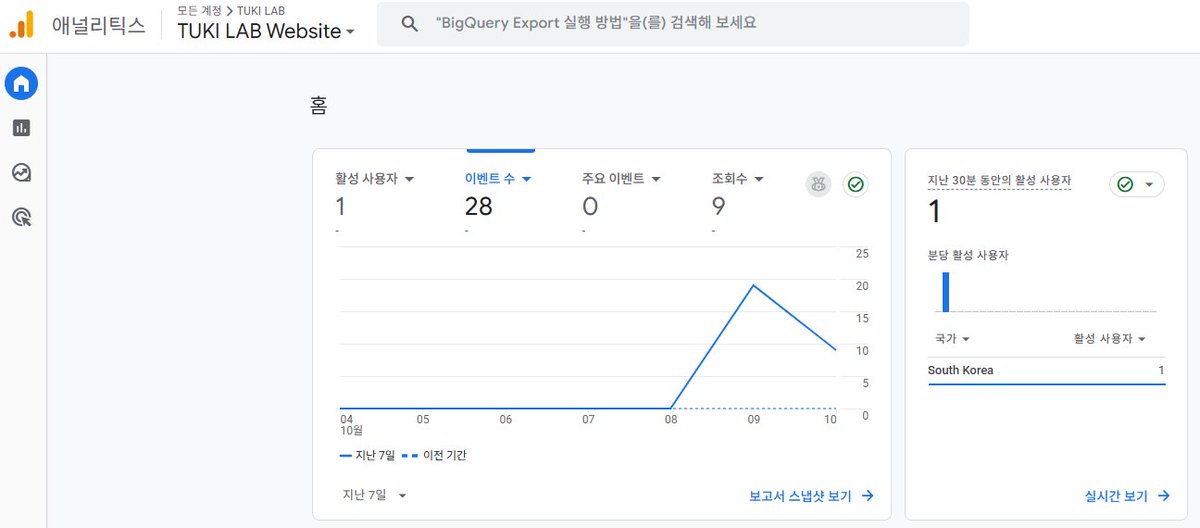
The original author is TUKI (@Ty_Tuki0609). They shared how they attached visitor analytics to a ChatGPT-built GitHub Pages homepage across two X posts, and this article faithfully translates and organizes that source material.
Image source: https://x.com/Ty_Tuki0609/status/2109157871816687880
Once a homepage is built, with social links and auto-updating recent activity in place, the next step is a structure for checking visitor counts. The author connected Google Analytics 4 (GA4). With GA4 connected, basic metrics such as visitor counts, real-time visits, traffic sources, and per-page views become available.
The author's full flow is as follows.
- Issue a GA4 measurement ID in Google Analytics (e.g.
G-XXXXXXXXXX). - Paste the prompt below into ChatGPT.
- Apply the changes to GitHub, then visit the homepage.
- Confirm the visit in the GA4 real-time report.
The author reports that after visiting the site directly, events were captured normally. They note that the exact application may vary slightly depending on the homepage structure, and that collecting the first metrics can take some time. They also note that while GA4 is free to use, privacy notice and consent requirements around visitor data and cookie handling should be checked for each site's operating environment.
The full GA4 one-stop prompt
Below is the verbatim prompt the author actually used. Replace only the G-XXXXXXXXXX part with the issued measurement ID.
Install Google Analytics 4 (GA4) on my homepage,
which is currently running on GitHub Pages.

GA4 measurement ID:
G-XXXXXXXXXX

First, check the connected GitHub repository and the current homepage structure.

Working conditions:

1. First check whether GA4 is already installed
2. If it is already installed, do not add it again
3. Install the Google tag in the location that fits the current homepage structure
4. Keep the existing design and features unchanged
5. Keep the social links and auto-updating recent activity features working
6. Apply it so page visits and basic events are collected normally in GA4
7. Explain the modified files and changes so even a beginner can understand
8. After the work is done, also explain how I can verify normal operation in the GA4 real-time report

Keep the existing homepage structure as much as possible and
modify only what is necessary.

If needed, also check whether a privacy policy or cookie/analytics tool notice is required.
The three key points of this prompt are: no duplicate installation if GA4 is already present, installing the Google tag where it fits the current structure, and keeping the existing design, social links, and auto-updating recent activity intact. After the work is done, follow the real-time report check ChatGPT provides and visit the homepage to confirm event collection.
Original source
- TUKI (@Ty_Tuki0609): Checking visitor counts on a ChatGPT-built homepage
- TUKI (@Ty_Tuki0609): GA4 one-stop connection prompt