ComfyArt: Open-Source AI Design Canvas Running on ComfyUI Across Local GPUs and Cloud
An overview of ComfyArt, a tldraw and React-based open-source infinite AI design canvas for ComfyUI, covering its setup, MCP agent integration, local GPU/LAN/Co
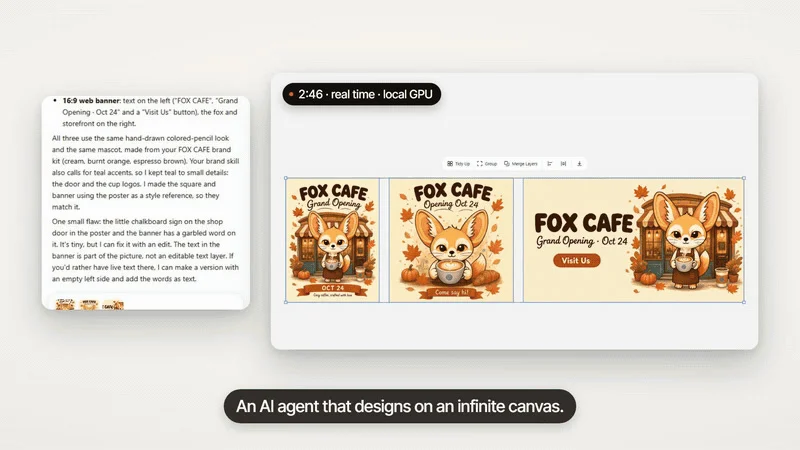
ComfyArt is an open-source AI design canvas built to run directly on top of ComfyUI, the widely used node-based generative AI execution engine. Released under the MIT license by developer jtydhr88, the project combines the infinite whiteboard library tldraw with the React user interface framework so creators can arrange and edit images, videos, audio, and 3D assets in one workspace without accounts, credit systems, or mandatory cloud hosting. Created on October 13, 2026, and updated through its v1.3.0 release on November 12, 2026, the repository packages a canvas-first interface around standard ComfyUI workflows.
Image source: https://github.com/jtydhr88/ComfyArt
Traditional ComfyUI workflows excel at wiring models, samplers, and variational autoencoders (VAEs) together in a node graph, yet comparing multiple visual variations side by side or combining typography, vector shapes, and product mockups on a node graph remains cumbersome. ComfyArt addresses this friction by keeping ComfyUI's /prompt execution backend intact while placing a full spatial canvas and tool-using agent interface in front of it.
Installation Architecture and Runtime Setup
ComfyArt is distributed as a ComfyUI custom node rather than a standalone desktop binary.
Users clone the repository into their ComfyUI/custom_nodes/ directory, install the Python dependencies into ComfyUI's Python environment, and restart the server. Because the prebuilt frontend bundle (dist/) is committed directly to the repository, no separate Node.js build or deployment step is required to launch the interface.
git clone https://github.com/jtydhr88/ComfyArt
pip install -r requirements.txt
The Python requirements install pypdfium2 for handling PDF uploads and rapidocr, an optical character recognition (OCR) library used by the Edit Elements feature to turn flattened posters back into editable text and cut-out layers. Once ComfyUI restarts, the canvas opens from the top menu bar or at [http://127.0.0.1:8188/comfyart/](http://127.0.0.1:8188/comfyart/). Projects, snapshot histories, and agent chat logs are stored locally in a SQLite database at user/__comfyart/data.db.
Canvas Capabilities and MCP Agent Integration
According to the project's documentation, ComfyArt integrates standard 2D vector layout tools with generative media workflows and Model Context Protocol (MCP) automation.
- Canvas, Vector, and Typography Tools: The workspace supports multi-page artboards with size presets, auto-layout, a draggable layers panel with range selection, spatial comments that trigger targeted edits, snapshot history, and exports to PNG, JPG, PDF, and editable PPTX files. Typography and vector features include mixed-style rich text boxes, a pen tool with node editing, and boolean operations (union, subtract, intersect, and exclude).
- Multimodal Generation and Image Utilities: Creators can generate pixel-sized still images or 5-to-15-second videos at 768p or 1080p, alongside tools for upscaling, background removal, inpainting, outpainting (expand), layer splitting, style transfer, and vectorization. Additional cards handle real-time product mockups that conform to folds and shading, audio generation (music, sound effects, and voice cloning), and image-to-textured-3D conversion.
- Built-In Agent and External MCP Clients: ComfyArt exposes an MCP server at
POST /comfyart/mcp, allowing AI coding and desktop agents to inspect the canvas and invoke design tools programmatically. When enabled in Agent Settings, users can connect Claude Code, Codex, Qwen Code, DeepSeek Harness, Hermes, or any OpenAI-compatible local LLM endpoint that supports tool calling.
Switching Between Local GPUs, LAN Nodes, and Comfy Cloud
For setups without a high-VRAM local graphics card—or studios running multiple workstations—ComfyArt separates canvas layout from compute routing.
By default, jobs run locally using open-weights models installed in ComfyUI. If other ComfyUI machines are running on the same local area network (LAN) with the --listen flag, users can register them in settings; an Auto routing option dispatches each job to the least busy machine that holds all required custom nodes and model files.
Alternatively, setting the COMFY_API_KEY environment variable and switching generation to Comfy Cloud routes identical workflows to [https://cloud.comfy.org/api/v2/jobs](https://cloud.comfy.org/api/v2/jobs). Because Comfy Cloud hosts preinstalled models and nodes, no local model downloads are needed, and completed files download automatically into output/comfyart/ with a cloud-<job> suffix so they behave identically to local assets on the canvas.
Operational Caveats and Data Handling Considerations
Before adopting ComfyArt in production or client work, several documented constraints warrant attention.
First, using Comfy Cloud via COMFY_API_KEY requires a paid Comfy plan; while ComfyArt itself is free under the MIT license, remote execution depends on commercial cloud billing. Second, whenever a job is submitted in Comfy Cloud mode, the input images and audio files referenced by that job are automatically uploaded as Comfy Cloud assets. Teams working with confidential brand assets or unreleased product photos should verify that generation routing remains locked to local GPU or internal LAN instances. Finally, while the README documents supported model files and workflow mappings in detail, independent performance benchmarks across specific GPU tiers are not provided in the repository evidence.
Sources
- GitHub Repository (
jtydhr88/ComfyArt): https://github.com/jtydhr88/ComfyArt