Mac Claude Desktop Storage Low: Inspecting and Cleaning Cowork VM Bundles
A practical guide to inspecting, safely cleaning up, and disabling the Cowork local virtual machine storage in ~/Library/Application Support/Claude/vm_bundles o
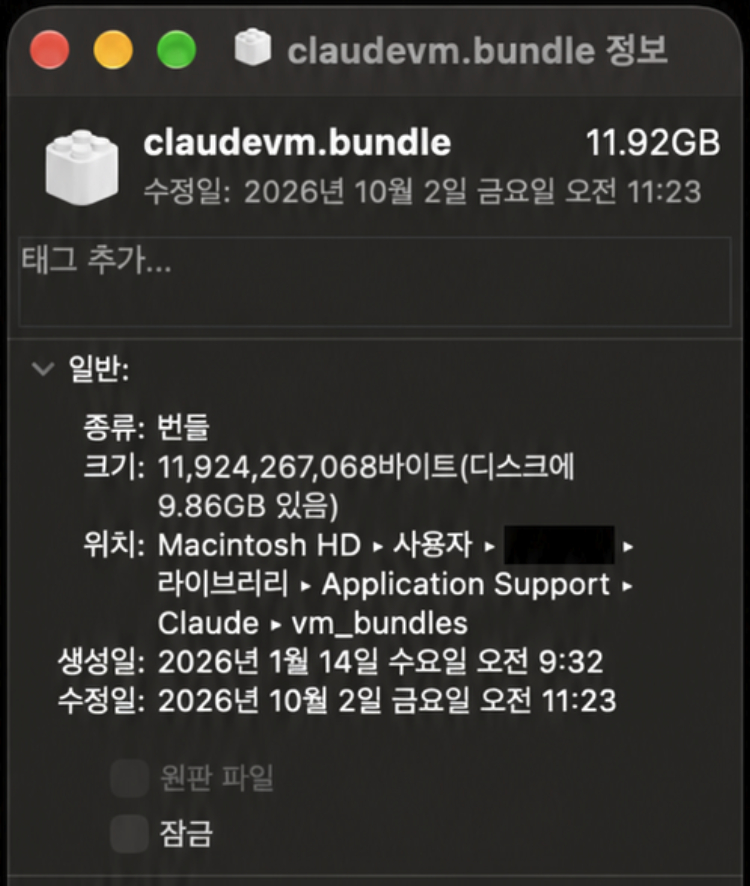
When using Anthropic's Claude Desktop application on macOS, users may encounter disk space shortages where available storage on their Mac drops significantly without an obvious explanation. X user @Hanssony_ shared a practical step-by-step troubleshooting workflow discovered while reclaiming storage on a Mac mini, focusing on the local virtual machine bundles (vm_bundles) used by Cowork and demonstrating how to safely inspect, clean up, and disable the underlying VM files.
Image source: X @Hanssony_
When reclaiming disk space on macOS, users typically inspect the application sizes in the /Applications folder. However, applications frequently accumulate substantial amounts of internal data under the ~/Library/Application Support directory. In the case of Claude Desktop, background virtual machine bundles deployed for Cowork—specifically the claudevm.bundle file, which occupied roughly 10 GB (11.92 GB, 9.86 GB on disk) in the shared screenshot—can occupy significant storage, making this directory a primary candidate to check during disk maintenance.
Locating the vm_bundles Directory and Checking Storage Size
If you receive macOS disk space warnings or notice declining storage while running Claude Desktop, the first step is to locate the directory where Cowork's local virtual machine images are stored.
- Target Path:
~/Library/Application Support/Claude/vm_bundles - Finder Navigation: In Finder, press the keyboard shortcut
Cmd + Shift + Gto open the "Go to Folder" prompt, enter the path above, and press Return. - Inspect Folder Size: If the folder exists, select it and press
Cmd + I(Get Info) to review its total disk allocation (in the author's case,claudevm.bundleconsumed 9.86 GB on disk).
If the folder does not exist or shows negligible disk usage, the Cowork virtual machine has either not been downloaded or is not the primary factor causing your storage deficit. In that scenario, no further deletion is required.
Assessing Cowork Usage and Securing Active Workspaces
Before deleting any files from the vm_bundles folder, it is critical to determine whether you actively rely on Cowork features in your daily workflow.
- Do Not Treat as Ephemeral Cache: The
vm_bundlesdirectory does not consist of trivial temporary cache files that can be wiped arbitrarily without consequences. It may contain running virtual machine states, workspace data, or local runtime files tied to your Cowork sessions. - Back Up Ongoing Work: If you actively use Cowork, ensure all in-progress projects, generated deliverables, and essential files associated with the VM workspace are safely backed up to an external directory before proceeding.
- Target Audience for Cleanup: This optimization is best suited for users who do not use Cowork features or who primarily utilize Claude Desktop for conversational queries, standard prompting, and non-VM workflows.
Disabling Cowork via Configuration and Reclaiming Storage
If you delete the files in vm_bundles while leaving Cowork enabled, Claude Desktop may automatically re-download the VM bundle upon the next launch, immediately reclaiming the freed storage. Permanently resolving the storage issue requires adjusting the application configuration.
- Completely Quit Claude Desktop:
Before modifying any files, ensure Claude Desktop is fully closed (
Cmd + Qor quitting from the menu bar). Making edits while background worker processes are active can cause configuration file lockouts or corruption. - Back Up the Configuration File:
Locate your
claude_desktop_config.jsonfile and create a backup copy before making changes. Ensure existing configuration entries and custom parameters are preserved intact. - Disable the Secure VM Feature Flag:
Open
claude_desktop_config.jsonin a text editor. Within thepreferencesblock, set thesecureVmFeaturesEnabledflag tofalse:{ "preferences": { "secureVmFeaturesEnabled": false } } - Delete the Virtual Machine Files:
Once the configuration file is saved, delete the VM bundle files located inside
~/Library/Application Support/Claude/vm_bundles. - Relaunch and Verify Operation:
Relaunch Claude Desktop and verify that everyday conversational features function normally. Confirm that the application does not automatically re-download or recreate large files in
vm_bundles.
Practical Caveats, Limitations, and Version Dependencies
Before applying this configuration change, several operational boundaries and trade-offs should be kept in mind.
- Absence of an Official GUI Option: This procedure relies on modifying an internal configuration flag rather than using an officially supported cache cleanup button within the Claude Desktop settings menu.
- Feature Restrictions: Setting
secureVmFeaturesEnabledtofalsedisables Cowork and any related capabilities that depend on the local virtual machine sandbox. - App Version Differences: While verified on the author's Mac mini environment, internal flag names and configuration schemas may evolve across future Claude Desktop releases and patches.
- Conservative Recommendation: If you are uncomfortable editing JSON configuration files or anticipate needing VM-powered features, it is advisable to stop at Step 1 to assess storage consumption without making structural changes.
Original source
- X post by @Hanssony_: View original post