Automating Antigravity CLI Permissions and Enhancing Security with 'Turbo Mode'
Learn how to automate persistent permission requests in Antigravity CLI using 'Turbo Mode' and secure your environment with a denyList.
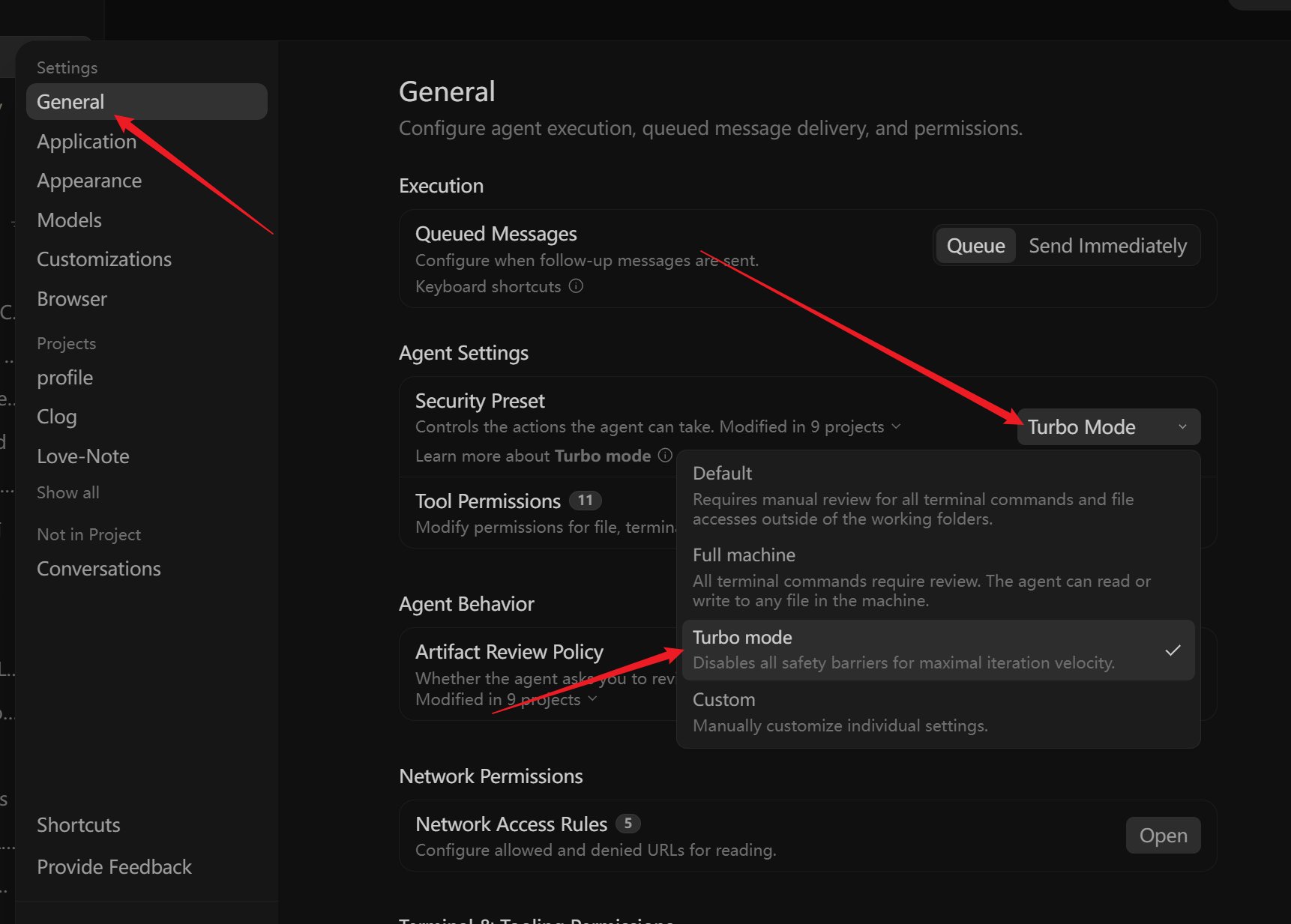
Using Antigravity CLI can sometimes feel sluggish due to frequent permission prompts. Thanks to a tip shared by @chasen_liao, you can enable 'Turbo Mode' to automate these requests, significantly improving your workflow while maintaining security through a custom denyList.
Image source: @chasen_liao
Setting Up Turbo Mode
You can enable 'Turbo Mode' by modifying your Antigravity CLI configuration file.
- Open your configuration file at
~/.gemini/settings.json. - Add
"terminalExecutionPolicy": "turbo"to the settings.
Once applied, this setting allows commands to execute without needing constant manual approval.
Enhancing Security with a denyList
Enabling 'Turbo Mode' allows the AI to execute commands automatically, making it essential to secure your environment against dangerous operations. We strongly recommend adding a denyList within the agent section of your configuration file to prevent the execution of sensitive commands.
The recommended list of restricted commands includes:
"agent": {
  "denyList": [
    "rm -rf",
    "del",
    "format",
    "rmdir",
    "rd",
    "shutdown",
    "reg delete",
    "bcdedit",
    "diskpart"
  ]
}
By configuring this list, you can enjoy the efficiency of automated CLI operations while protecting your system from unexpected destructive commands.