Everything - The Essential Tool That Makes You Abandon Windows Explorer Search
Stop waiting 30 seconds for file searches, finish in 0.1 seconds. How to boost Windows productivity tenfold with Everything.

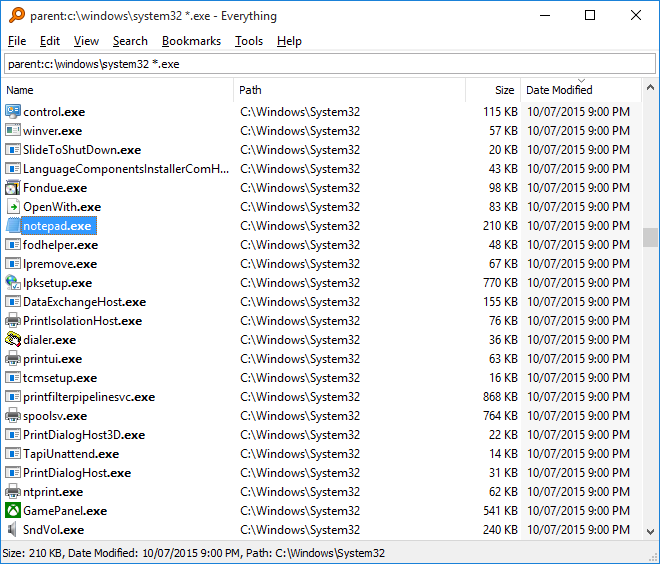
The Pain of Windows Explorer Search
There comes a moment when using a computer:
"Where did I put it... that file..."
You type the filename into the Windows Explorer search bar.
5 seconds... 10 seconds... 30 seconds...
Still searching.
As projects grow larger and the number of files on your disk increases, this pain intensifies.
And the results you find are often irrelevant cache files or too numerous to find what you're looking for.
Everything is the Answer
Everything solves all these problems in 0.1 seconds.
Literally 0.1 seconds.
Even with millions of files, results appear instantly as you type.
It's like magic, but it's not. It directly reads the MFT (Master File Table) of the NTFS file system.
Why You Must Use It
1. Instantly Browse All Files
Search term: meeting minutes
Result: All matching files displayed in 0.003 seconds
Finds files hidden deep within folders in an instant.
2. Regular Expression Support
Search term: regex:.*\.pdf$
Result: All .pdf files
Windows Explorer? It doesn't know regular expressions.
3. Advanced Search Syntax
size:>10mb modified:today ext:log
→ Only log files larger than 10MB modified today
Finds the exact files you want by combining date, size, attributes, and path.
4. Real-time Synchronization
When a file is created or deleted, it is immediately reflected in the index.
No re-indexing.
5. HTTP/FTP Server Functionality
Everything → Tools → HTTP Server
→ http://localhost/
When you need to share local files with teammates, it launches a web browser-accessible file server in 1 second.
Installation
Download
Official website: https://www.voidtools.com
Three versions:
- Standard Installer (Everything-1.4.1.1029.x64-Setup.exe)
- Recommended. Supports automatic updates.
- Lite Version (Everything-1.4.1.1029.x64.Lite-Setup.exe)
- Lightweight version without FTP/HTTP server.
- Portable Version (Everything-1.4.1.1029.x64.zip)
- Good for carrying on a USB drive.
First Run After Installation
- Automatic NTFS volume indexing starts upon installation.
- Indexes even a million files in under 1 minute.
- From then on, search results appear instantly as you type.
Basic Usage
Search Bar
Hotkey: Win + S (changeable in settings)
Results appear in real-time as you type.
Input: package
Result: package.json, package-lock.json, packages/ ...
Executing Files
Double-clicking a result opens the file.
Ctrl + Enter: Opens the folder containing the file in Explorer.
Ctrl + Shift + C: Copies the file path.
Advanced Search Syntax
Extension Filter
ext:ts;tsx        → Only TypeScript files
ext:md            → Only Markdown files
!ext:log          → Exclude log files
Path Filter
path:src\         → Only files within the src folder
path:"C:\Projects\tau-home-blog\"
Note: If the path contains spaces, it must be enclosed in double quotes.
Date Filter
dm:today          → Files modified today
dm:thisweek       → Modified this week
dm:2025           → Modified in 2025
dc:yesterday      → Files created yesterday
Size Filter
size:>100mb       → Larger than 100MB
size:5mb-10mb     → Between 5MB and 10MB
size:empty        → Empty files
Attribute Filter
attrib:h          → Only hidden files
attrib:r          → Only read-only files
Regular Expressions
regex:^test.*\.js$    → .js files starting with test
regex:component-\d+   → Patterns like component-123
Combination Examples
ext:tsx path:src\ dm:today size:<1mb
→ TSX files in the src folder, modified today, smaller than 1MB
Practical Tips
1. Bookmark Frequently Used Files
Save frequently used search terms as bookmarks:
Bookmarks → Add to Bookmarks
→ Name: "My Documents PDF Files"
→ Search term: ext:pdf path:"C:\Users\MyDocuments\"
Instantly recall with Ctrl + Number.
2. Find Duplicate Files
dupe:
→ Displays files with the same filename
Useful for finding the same photos or documents scattered across multiple folders.
3. Clean Up Large Files
size:>500mb
→ Find files consuming disk space
Find and clean up build artifacts, caches, old backups, etc.
4. Share Files with HTTP Server
Tools → HTTP Server → Start
Access http://localhost/ to browse files in your browser.
Convenient for sharing build files with teammates or downloading local files on mobile devices.
5. Command Line Interface
es.exe "*.log" -path "C:\Logs\"
Can be used for batch scripts or automation.
Everything vs Windows Explorer Search
| Feature | Everything | Windows Explorer |
|---|---|---|
| Search Speed | 0.1 seconds | 30 seconds ~ several minutes |
| Indexing | Real-time MFT | Background Indexer |
| Regular Expressions | ✅ Supported | ❌ None |
| Advanced Filters | ✅ Date/Size/Attribute Combination | ⚠️ Limited |
| Resource Usage | Very Low (10MB) | High (Indexer) |
| Real-time Results | ✅ Instant Typing | ❌ Wait after Enter |
| HTTP Server | ✅ Built-in | ❌ None |
Limitations
NTFS Only
Everything only reads the MFT of the NTFS file system.
Meaning:
- ✅ Windows C:, D: drives (NTFS)
- ❌ FAT32, exFAT USB drives
- ❌ Network drives (by default)
Solution: Network drives can be indexed slowly with the "Folder indexing" feature.
Tools → Options → Indexes → Folders
Windows Only
Linux/macOS are not supported.
Alternatives:
- macOS: Alfred, Spotlight
- Linux:
locate,fd,fzf
Recommended Settings
Hotkeys
Tools → Options → Keyboard
- Open search bar:
Win + F(F = Find) - Open new window:
Ctrl + N
Default Sort Order
View → Sort By → Date Modified (Descending)
Because you often look for recently modified files while working.
Double-click Behavior
Tools → Options → General
→ Double-click path: Open Path
Open folder instead of executing file on double-click (depending on preference).
HTTP Server Port
Tools → Options → HTTP Server
→ Port: 8080 (or desired port)
→ Username/Password settings (security)
Conclusion
Everything is a tool that saves your time.
Even if you only search for files 10 times a day, you save 5 minutes a day compared to Windows Explorer.
That's 30 hours in a year.
What if you could earn 30 hours with a free tool?
Install it right now.
Download:
Official Documentation:
Written: 2025-10-21
This article was written based on Everything version 1.4.1.